ViewingOnlineOn Ground
Online sections — 7 topics, discussion questions, one cumulative final
In-person sections — 3 units, Exams 1–3, then the final
Course format
TOPIC 2 · MAJOR ASSIGNMENT 1 · COMPONENT 01/ Conversions & Budgeting / major assignment / income analysis
01Slope, intercept, and a line that predicts.
Fit a best-fit line to BLS data on years of education vs. weekly income, then use that line to predict incomes for years 8 through 24. Build the scatter plot and extend the trendline both directions.
Major Assignment · 23 pts
Excel · desktop only
=SLOPE() · =INTERCEPT()
A 7-page MA1 Walkthrough PDF covers all three tabs in the same hint depth as this page. Useful if you'd rather print, annotate on paper, or keep it open on a second screen while working in Excel.
The whole assignment, start to finish. Pause and scrub; the click-by-click version is one tap away.Walkthrough video coming in a future recording. Until then, work from the slideshow above and the printable PDF.
YOUTUBE · SCRIBE.HOW
≡
Step-by-step walkthrough
Coming soon. Check back after the Scribe is recorded.
▸
Video walkthrough
Coming soon. Work from the slideshow and printable PDF until then.
The math here is the same shape as Topic 1 DQ 2: =SLOPE(), =INTERCEPT(), a scatter plot, and a forecasting trendline. If that DQ landed, this component is the same five moves applied to a different dataset (BLS years of education vs. average weekly income, values randomized off your name length). Skip ahead if you already feel the workflow.
Same walkthrough, three modes.Pick the one that lands for you today.
ORIENT
· the tab
Three sections, one workflow.
BLS data on top. Your predictions below. Chart at the bottom.
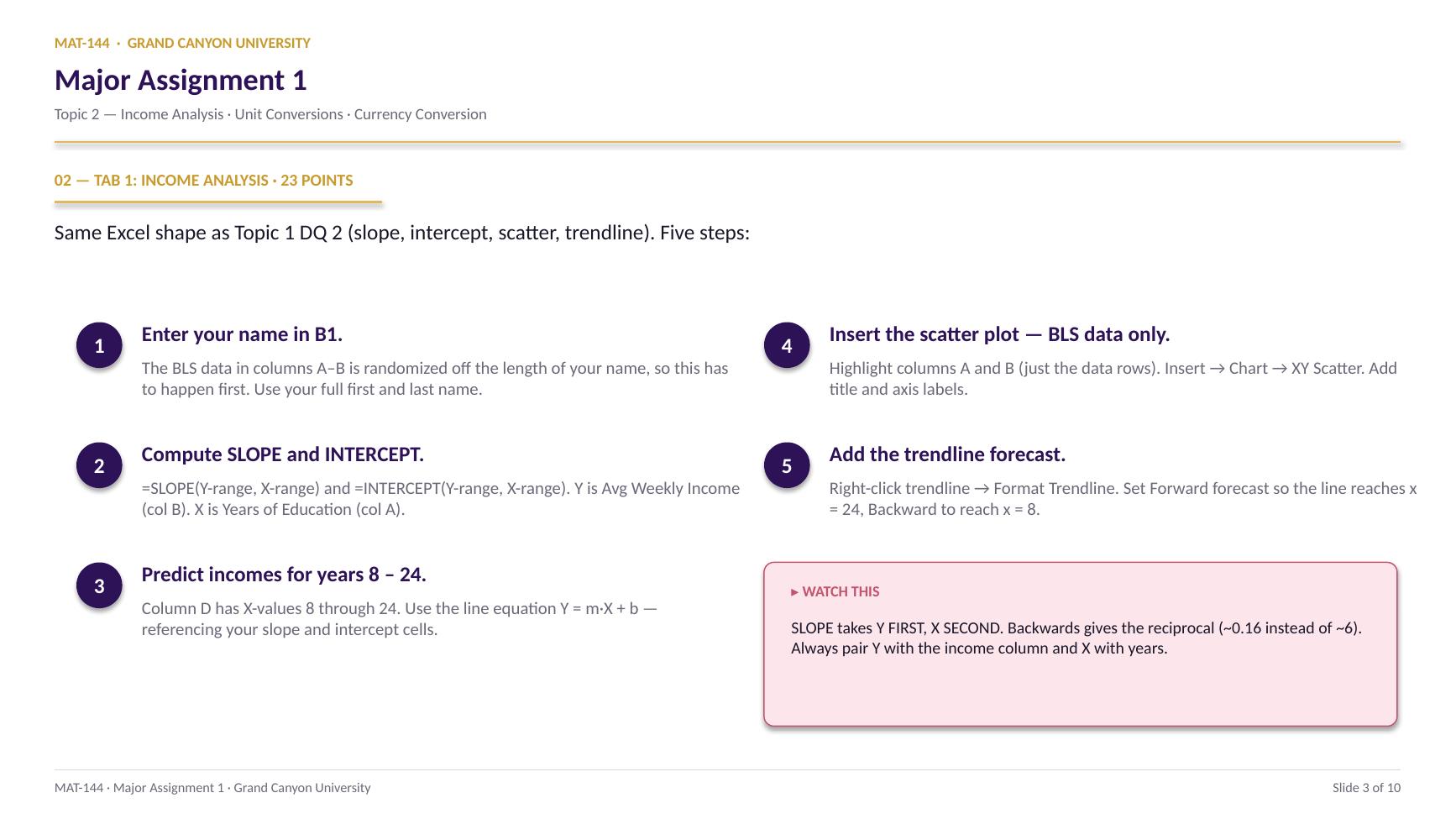
Your name in cell B1 seeds the data — until you fill it in, every value in column B reads “Enter your name in B1.” Type your full first and last name first, then everything below populates.
§1 · BLS data
Column A (Years), Column B (Income).
Eight rows. Column A holds years of education (X). Column B holds the corresponding average weekly income (Y), randomized off your name.
§2 · Predicted incomes
Column D (Years 8–24), Column E (Predict).
Column D is already filled. Column E is where you'll use the line equation Y = m·X + b to predict income at each year of education.
§3 · Scatter plot
Inserted below the data tables.
Empty for now. You'll insert an XY scatter of the BLS data (columns A and B, not the predicted table) with a trendline extended to x = 8 and x = 24.
CONCEPTS · six things to know
The four moves you'll make.
Each is the same Excel pattern: click cells, never type numbers. Lock the references with dollar signs so formulas copy clean.
Swipe through 4 ideas
01
Slope
=SLOPE() reads rise over run, automatically.
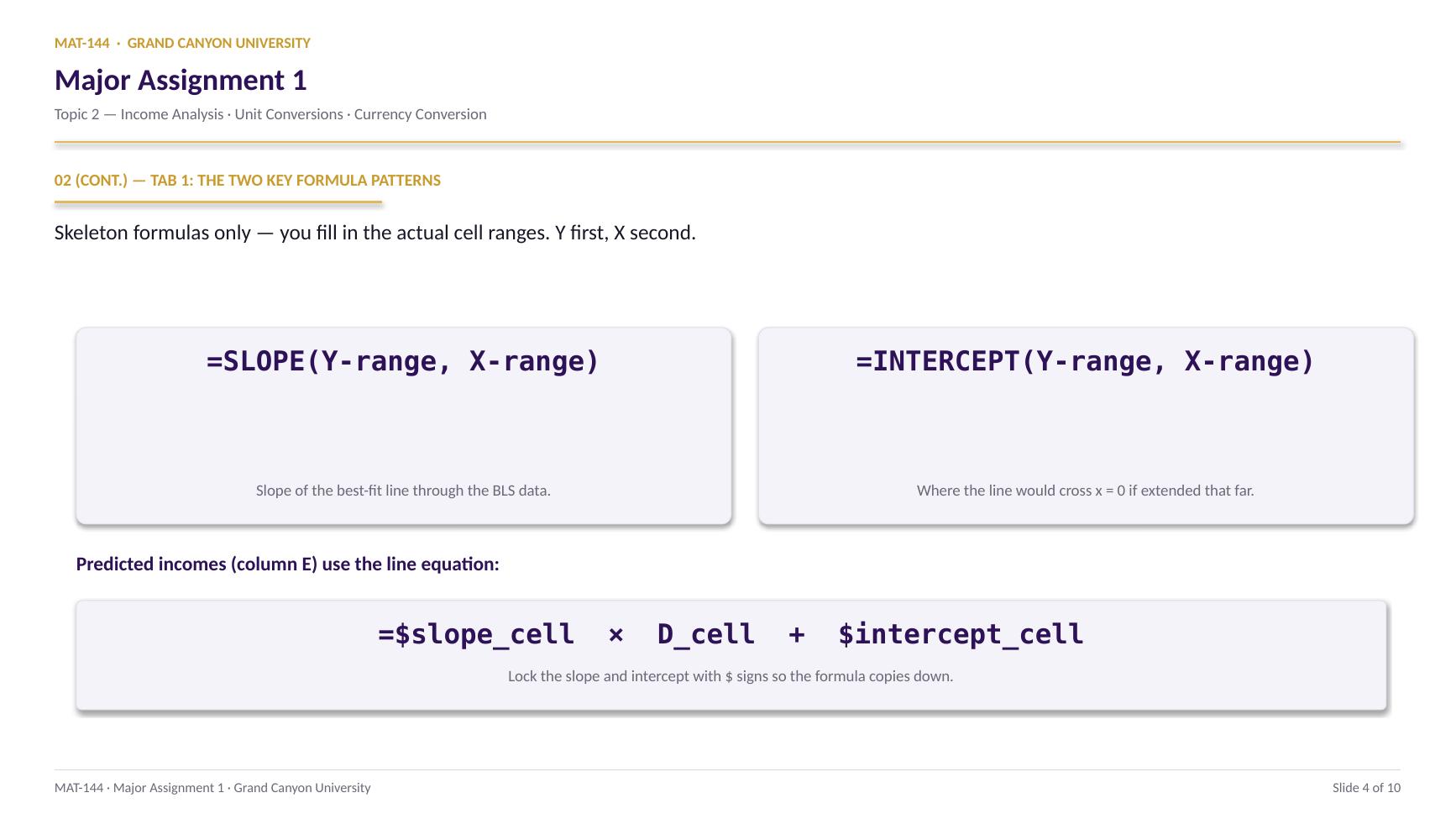
Type =SLOPE(Y-range, X-range) — Y first, X second. Y is your Average Weekly Income column (B). X is Years of Education (A). The function returns the slope of the best-fit line through every (X, Y) pair in the data.
Format the result cell as Number with 0 decimals. The number tells you how many extra dollars per week each additional year of education buys.
=SUM(E21:E28)
=Switch on
SUMFunction name
( )Argument hold
E21:E28Range arg
02
Intercept
=INTERCEPT() finds b.
Same shape as SLOPE: =INTERCEPT(Y-range, X-range), Y first. INTERCEPT returns the predicted Y-value when X = 0 — where the best-fit line would cross the y-axis if extended.
Format as Number with 0 decimals. Read it as “the predicted weekly income at zero years of education” — which is a wild extrapolation, so don't treat the value too literally. It's a parameter, not a real-world prediction.
=SUM(E21:E28)
=Switch on
SUMFunction name
( )Argument hold
E21:E28Range arg
03
Predict
Plug the line equation into every row of column E.
The pattern: =$slope_cell * D_cell + $intercept_cell. Lock the slope and intercept cells with $ signs (e.g., $B$28) so the formula copies cleanly down. The D-cell stays relative so each row picks up its own X-value.
Format column E as Currency with the $ symbol and 0 decimals.
=$slope * D-cell + $intercept
Slope and intercept locked with $. D-cell stays relative.
Copy down column E from row 19 to row 35.
04
Chart
Scatter plot the BLS data only, then add the trendline.
Highlight columns A and B (just the eight data rows). Insert → Chart → XY Scatter. Don't include the predicted-incomes table — that's a separate exercise.
With the chart selected: Chart Design → Add Chart Element → Trendline → Linear. Then right-click the line and pick Format Trendline. Set Forward forecast so the line reaches x = 24, and Backward forecast to reach x = 8. Add a chart title and axis labels via Add Chart Element.
Cell by cell
=(E21+E22+E23+…+E28)/8
⟶
Range, scales freely
=AVERAGE(E21:E28)
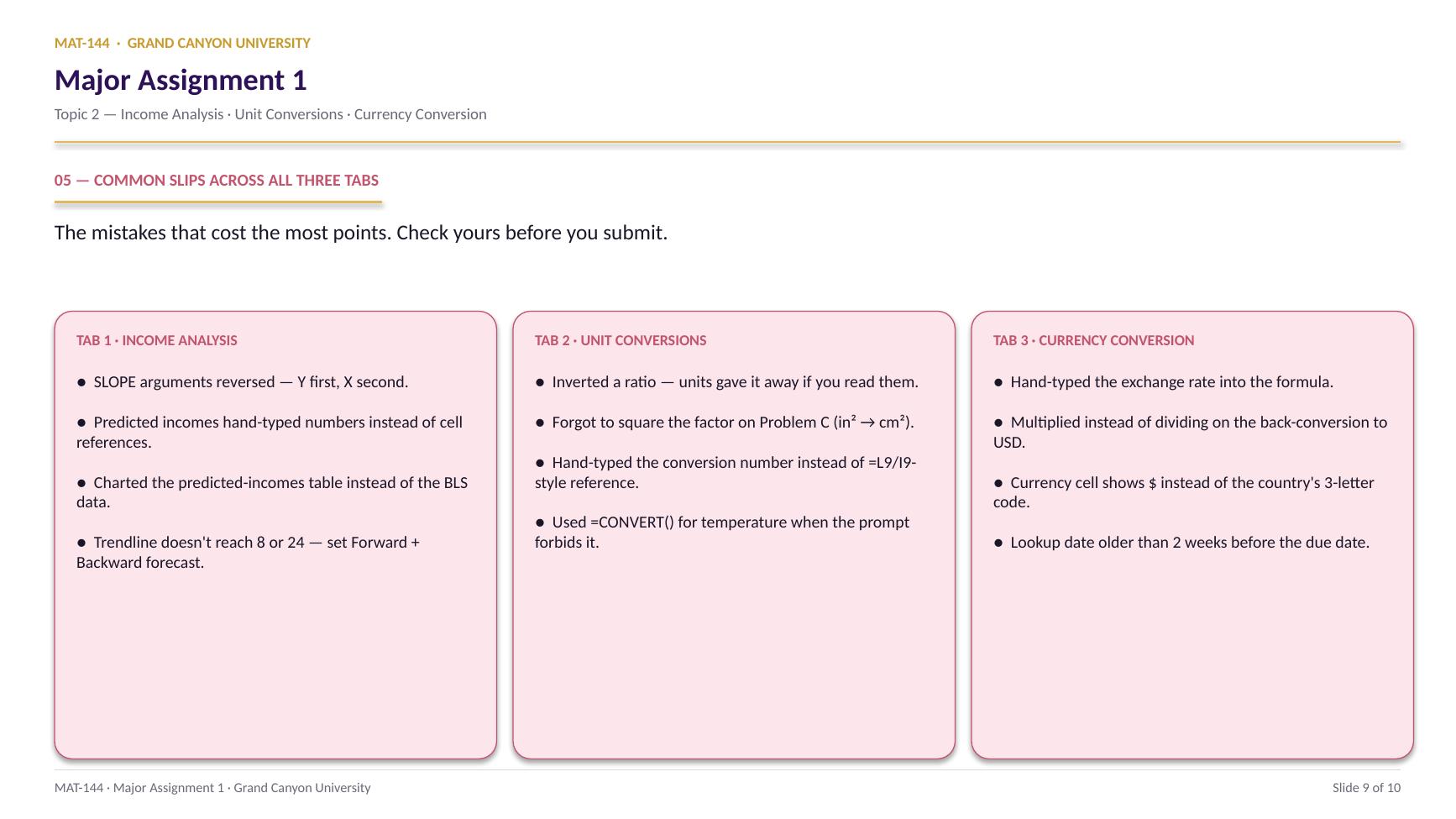
Common slips
Four mistakes that cost the most points.
Check these before you submit. Three out of four are formula-reference issues, not math errors.
Tap a mistake to see the fix
01
SLOPE arguments reversed.
=SLOPE(X, Y) returns the reciprocal of the right answer (~0.16 instead of ~6). Y first, X second. ALEKS reads it like “rise over run.”
Tap for the fix
02
Predicted-incomes formula hand-typed the slope and intercept.
Looks right on the surface, but the auto-grader checks for cell references. Click the slope and intercept cells in your formula instead of typing the numbers. Add dollar signs ($B$28) so references don't shift when you copy down.
Tap for the fix
03
Charted the wrong range.
If your scatter plot has dots at (8, 0), (9, 0), … you selected the predicted-incomes table (D and E) instead of the BLS data (A and B). Click the chart, “Select Data,” and point at columns A and B for the BLS data only.
Tap for the fix
04
Trendline doesn't extend to 8 or 24.
Right-click the trendline → Format Trendline. Set Forward forecast and Backward forecast so the line reaches from x = 8 to x = 24, even though the data only spans 10–20.
Tap for the fix
3
Step 3 · check
Check it before you post
Checked. Ready to post.
4
Step 4 · post & reply
Post, then reply to two classmates
Initial postWednesday
Two repliesSunday
A reply worth points does one of three things
Checks a number. Compare one of their answers with yours and say where you agree or differ, and why.
Explains a step. Pick the step they found hardest and show how you thought about it.
Connects it. Tie their answer to a real decision: a loan, a budget, a job offer.
“Great job!” is a nice thing to say and is not a reply.
Done. This DQ is complete.
Application & connection
This is Topic 1, in spreadsheet form.
Slope and y-intercept are the Topic 1 move. The Excel functions =SLOPE() and =INTERCEPT() just automate what you'd do by hand with two points: divide rise by run, then back-solve for b. Read your output as a story: the slope tells you how many extra dollars per week each year of education buys, and the intercept is the predicted income at zero years (which is a wild extrapolation, hence the chart's lower bound at 8).
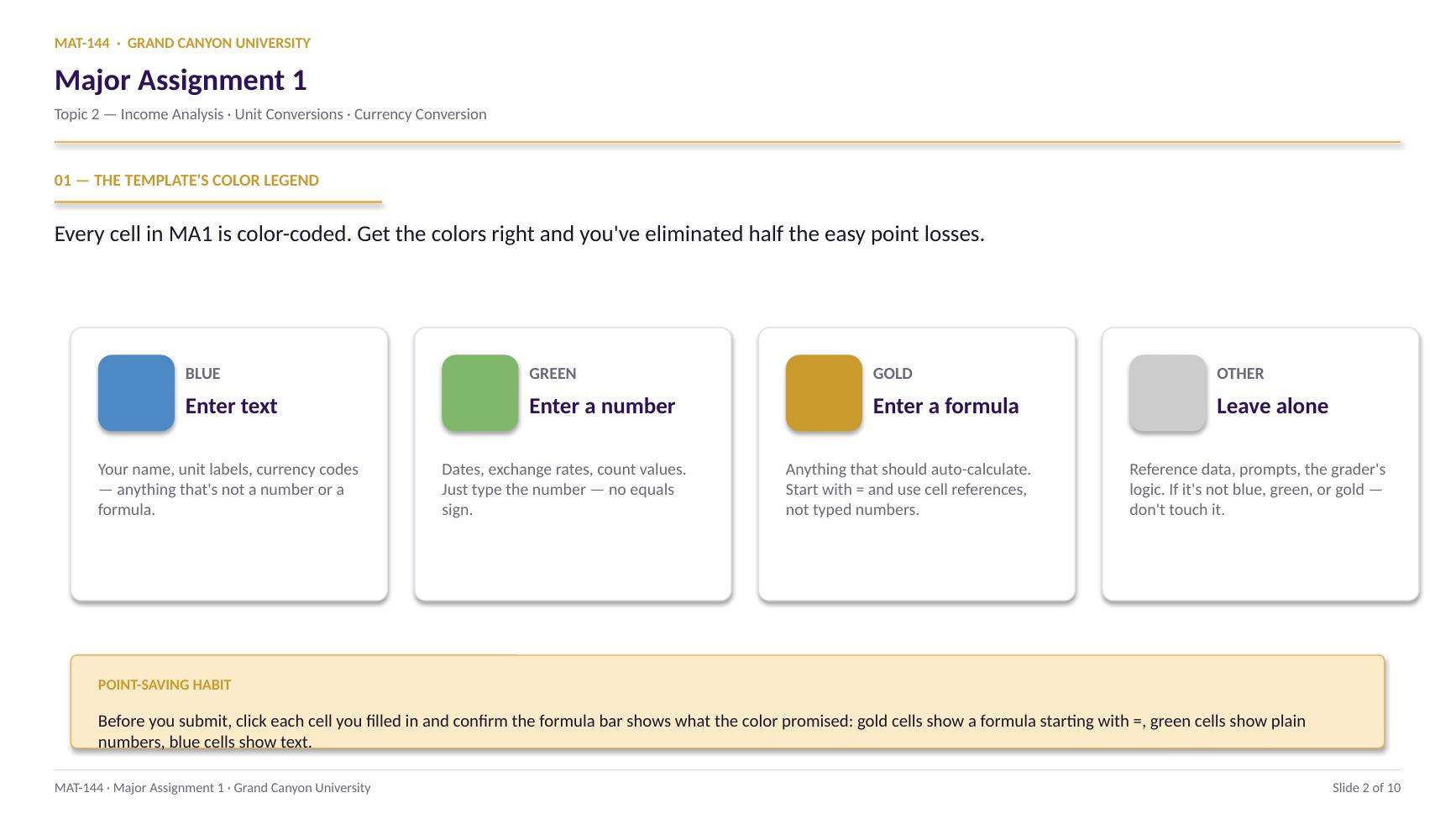
If the math feels distant, jump back to Topic 1 Lesson 4 (Slope) and Lesson 5 (Linear Modeling) for a refresh. The Excel shape is also very similar to Topic 1 DQ 1: cell references in formulas, gold cells for the math, blue cells for text, number formatting at the end.