

TOPIC 2 · DQ 1 / Conversions & Budgeting / discussion question

01Cancel the units, keep the meaning.

Eleven conversion factors at the top of the sheet, four problems below. The week dimensional analysis moves from paper to formulas.

Discussion · 5 pts Initial post Wed · replies Sun Unit conversions Cell references
1
Step 1 · materials
Download the worksheet

Topic_2_DQ_1.xlsx

XLSX 5 pts v2.4 · spring 26
2
Step 2 · walkthrough
Watch the click-by-click

Every keystroke through the conversions tab. Pause anywhere; the embed scrolls independently of the page.

SCRIBE.HOW · YOUTUBE
Same walkthrough, two modes. Use whichever helps you today.
ORIENT · the worksheet

What's actually on the sheet.

One worksheet, two halves. Skim before opening the file.

Everything happens on the Conversions tab. The top half is a reference table you don't fill in — eleven equivalences (kg-lb, mL-fl oz, m-ft, day-h, and so on). The bottom half is four problems whose formulas read off that table instead of typing the numbers in by hand.

§1 · Factor table

Eleven rows, never typed twice.

The conversion factor table sits at the top so every formula below can reference it. Cell references over typed numbers — same Excel discipline as T1 DQ1, now with conversion constants instead of a and b.

§2 · Four problems

Example, warm-up, two graded.

Part A is a worked example with video. Part B is a squared-units warm-up that uses three ratios instead of two. Parts C and D are graded problems whose starting quantities are randomized off your name.

CONCEPTS · six things to know

The why behind every ratio.

Six ideas to internalize. The first three are about the setup; the last three are about reading the answer.

01
Table

The factor table is your source of truth.

The top half of the worksheet is a conversion factor table: eleven rows of equivalences (kg-lb, fl oz-mL, oz-g, kg-g, g-mg, mg-mcg, L-fl oz, L-gal, tsp-mL, m-ft, day-h). You don't fill these in. Their job is to be referenced from your formulas in Section 2.

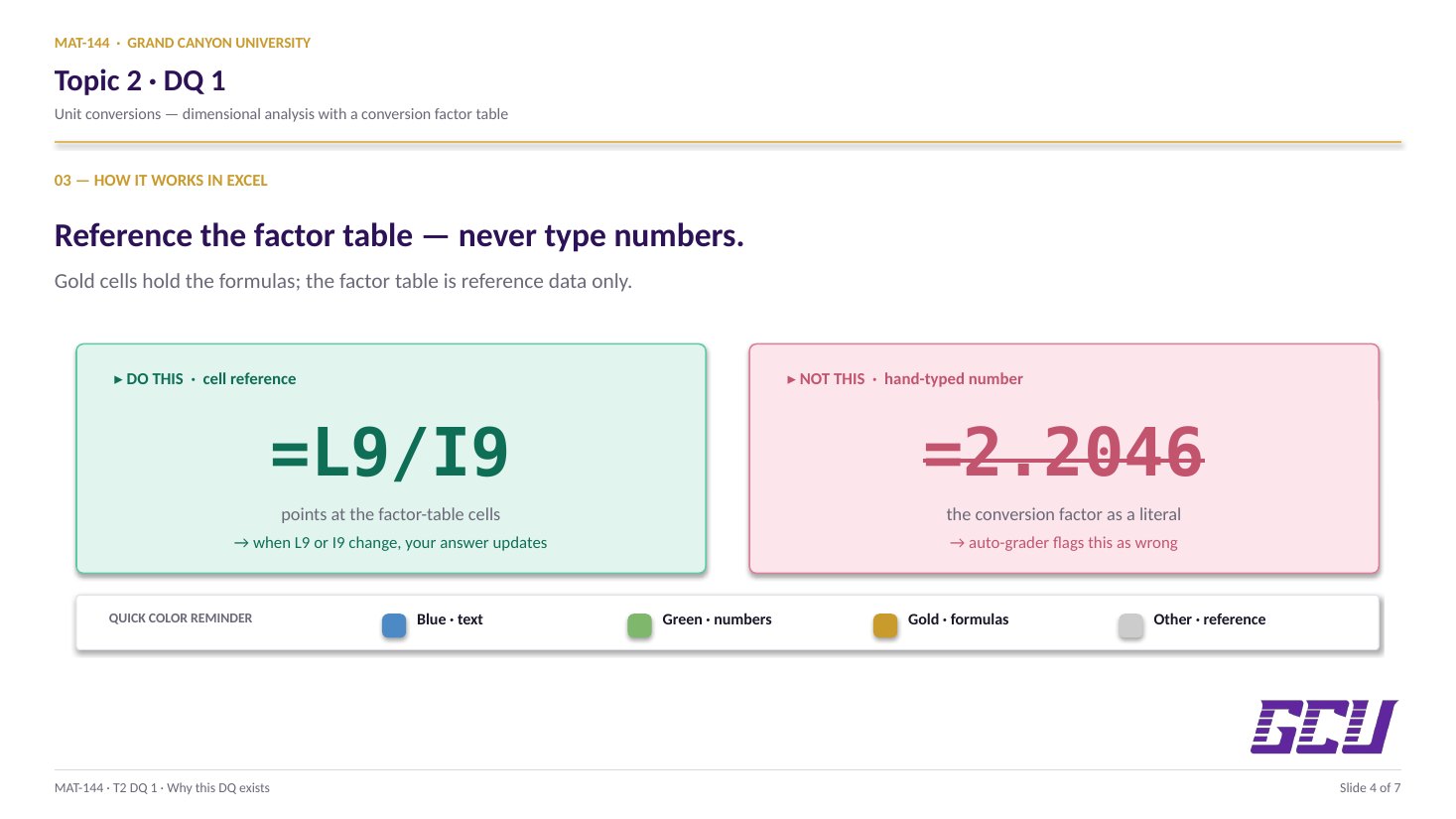
The whole point of this layout is so you can write =A2*(F14/B14) instead of =A2*(2.2046/1). The first formula reads off the table; the second hand-types a number that goes stale the moment the table changes. Cell references over typed numbers, every time.

This is the same Excel discipline you saw in Topic 1 DQ 1 (=B8+C8 beats =8+7). On a conversions worksheet it pays off twice as fast, because there are conversion constants to forget.

02
Factor

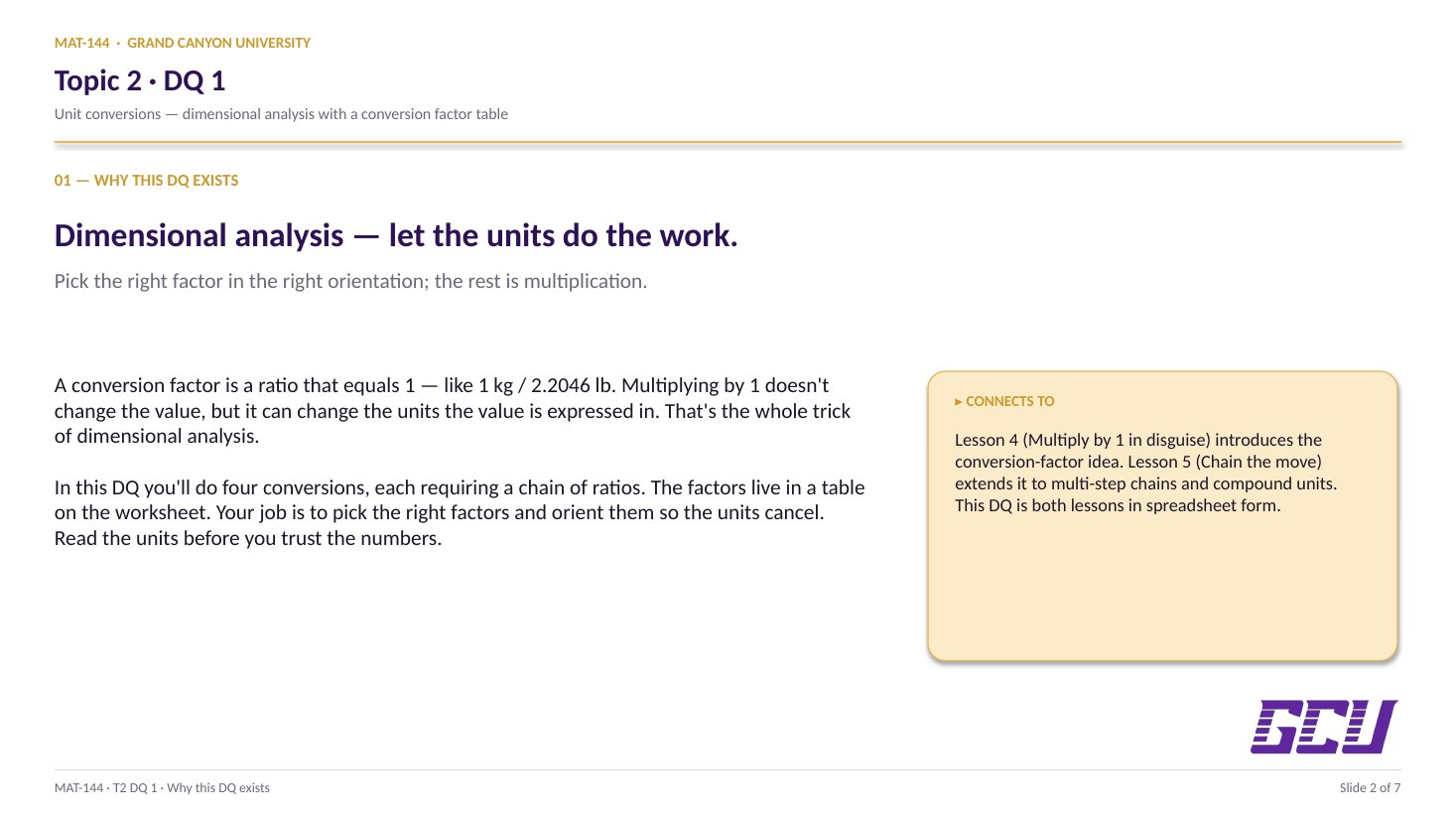
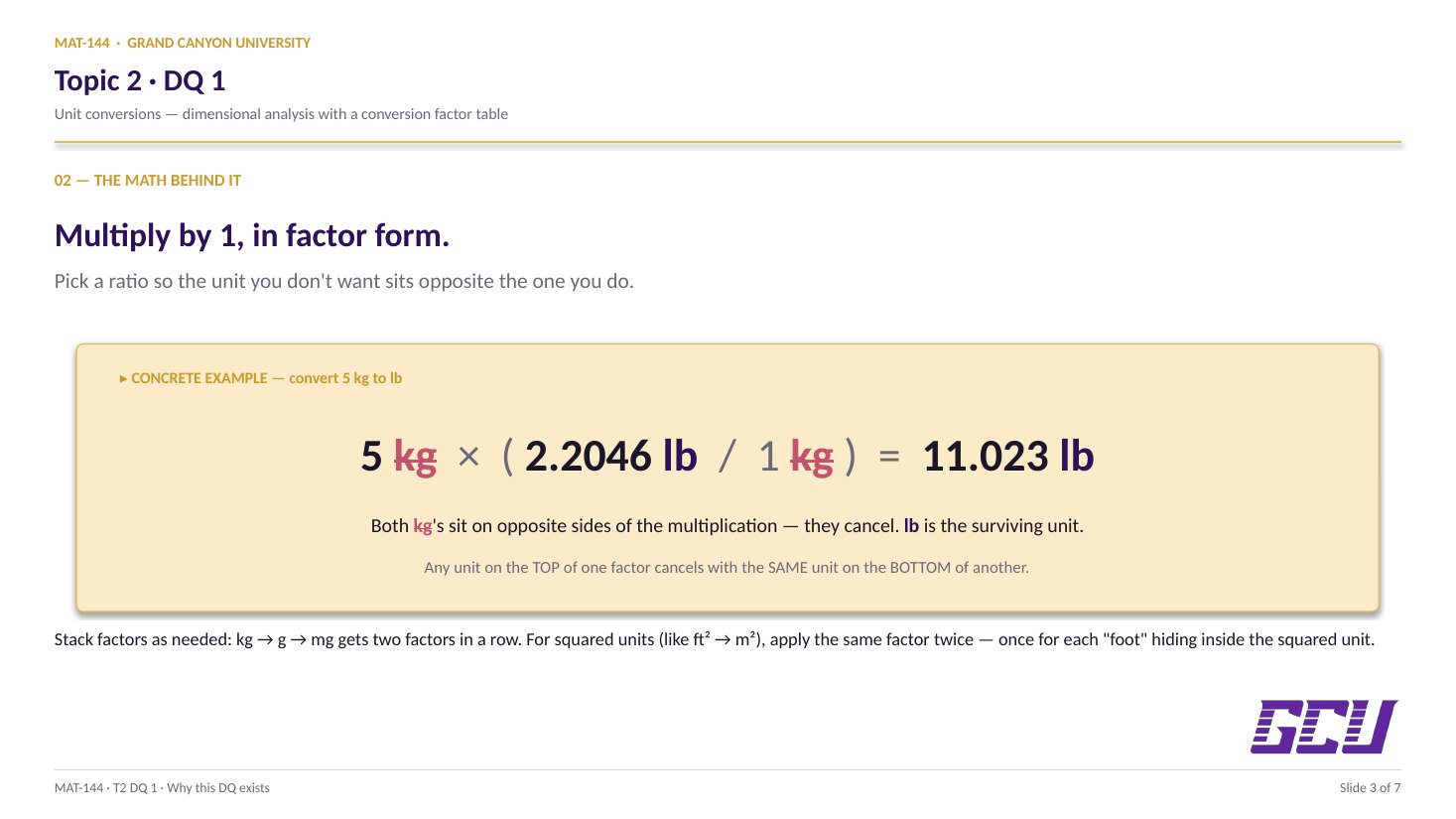
A conversion factor is 1 in disguise.

A conversion factor is a fraction that equals 1 in disguise. 1 kg / 2.2046 lb doesn't look like 1, but in measurement terms it is, because 1 kg = 2.2046 lb describes the same physical weight in two unit systems. Numerator and denominator name the same thing.

Multiplying any quantity by 1 doesn't change the value, only how it's written. Multiplying by a conversion factor doesn't change the weight you started with, only the units it's expressed in. That's the core trick of dimensional analysis.

Excel writes the factor as a ratio of two cells: F14/B14 if F14 holds 2.2046 and B14 holds 1. The slash is the fraction bar. Same idea as Lesson 4 (Multiply by 1 in disguise), now with cell references doing the lookup.

03
Cancel

Put the unit you want gone on the opposite side.

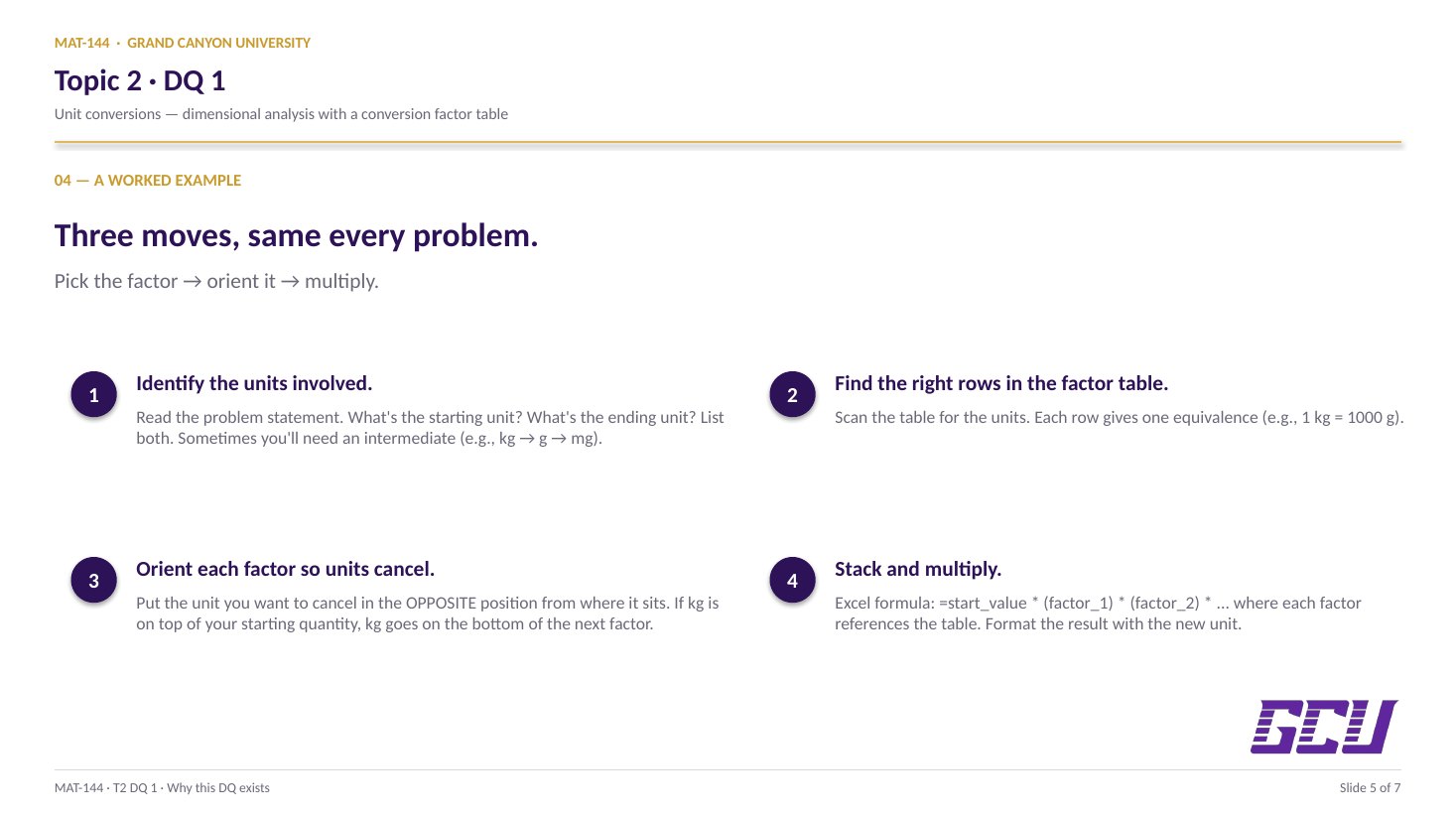
The setup matters more than the multiplication. Put the unit you want to get rid of on the opposite side of where it appears in the input.

Starting with 5 lb and want kg? lb is on top of the input (just 5 lb, no denominator), so put lb on the bottom of the factor: (1 kg / 2.2046 lb). That puts the lb's diagonally across from each other, where they cancel.

If you flip the factor (2.2046 lb / 1 kg), you end up with 5 lb × lb / kg = 11.02 lb² / kg, which is nonsense. Cancellation only works when the unit appears once on top and once on bottom.

5 lb × (1 kg / 2.2046 lb)
= 2.27 kg
lb on top, lb on bottom —
they cancel. Result: kg.
5 lb × (2.2046 lb / 1 kg)
= 11.02 lb²/kg
lb on top twice — nothing
cancels. Nonsense units.
04
Chain

Stack the ratios. Each one cancels one unit.

Some problems need more than one factor. Convert grams to pounds? The table doesn't have g-lb directly, so you chain through kg: g → kg → lb. Two factors, one cell.

Excel handles chains by stacking ratios in a single formula: =A2 * (B5/C5) * (B7/C7). Each ratio in its own parentheses. Each factor cancels one unit and introduces the next. Order doesn't matter mathematically (multiplication commutes), but reading left-to-right helps you trace what's cancelling what.

The end-state is what matters: by the time the chain finishes, every unit you started with should have a matching opposite somewhere in the chain, and only the unit you wanted should survive. If the chain leaves you with the wrong unit, a factor is in the wrong direction.

05
Squared

Squared units need the factor twice.

Squared units are the trap on this DQ. means m × m, so converting to ft² requires the m-to-ft factor twice, once for each m. That's why problem B uses three ratios instead of two.

Concretely: 5 m² × (3.281 ft / 1 m) × (3.281 ft / 1 m). The first factor cancels one m; the second cancels the other. What's left is ft × ft = ft², exactly what you wanted.

Cubed units (m³ → ft³) need the factor three times. Same logic: every power of a unit needs its own conversion ratio. Square inches to square feet, cubic feet to cubic yards, anywhere a unit has an exponent, the factor gets the same exponent.

06
Verify

Check the units before you check the decimals.

The cheapest sanity check on this DQ has nothing to do with the number. It's the units of the answer.

If the question asked for kg and your formula left you with lb²/g, something cancelled wrong, the number is meaningless even if Excel returned a clean digit. Trace through the formula and find the unit that didn't get a partner.

If the units come out right, the number is almost always right too (typos in conversion constants are the only common failure mode after that). Check units before you check decimals. The unit-check catches setup mistakes; the decimal-check only catches arithmetic mistakes, which Excel doesn't make.

Common slips

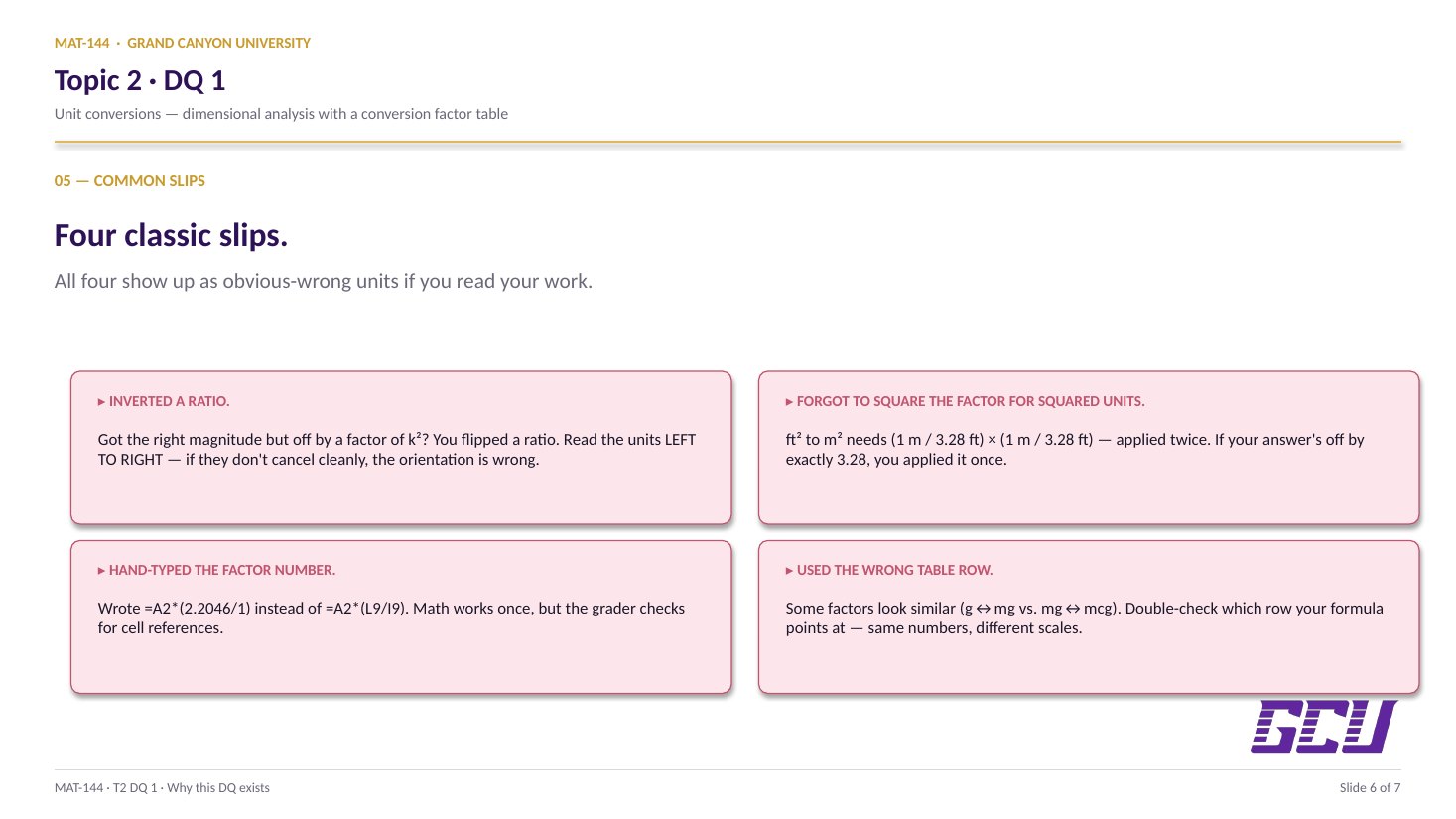
Five mistakes that bite first-timers.

Read these before you submit. The inverted-ratio slip is the silent killer; everything else is a downstream check on whether you set the cancellation up right.

  1. 01
    Inverted the ratio.

    Wrote (2.2046 lb / 1 kg) when the formula needed (1 kg / 2.2046 lb). Number is off by about 4.86×; units don't make sense. Re-check which unit you're cancelling and put it on the bottom.

  2. 02
    Used the wrong factor pair.

    Pulled g-mg when the problem needed mg-mcg. The numbers match by coincidence (both are 1/1000), but the units don't. Read the row labels, not the values.

  3. 03
    Forgot to square the factor.

    Did m² × (ft / m) instead of applying the factor twice. Result is off by an unconverted m. Squared units need the factor squared too.

  4. 04
    Typed the conversion number directly.

    Wrote =A2*(2.2046/1) instead of =A2*(F14/B14). Math works once; if the table updates, your formula doesn't. Reference the cells.

  5. 05
    Mixed unit families.

    Tried to convert kg to mL in one step. Mass and volume aren't directly convertible (you'd need a density). The table only contains within-family conversions.

Application & connection

Same recipe, spreadsheet form.

This DQ exercises the moves from Lesson 4 (single-step conversions) and Lesson 5 (chained factors and compound units), in spreadsheet form. The conversion factors live in a reference table at the top of the sheet; you write formulas that reference those cells instead of typing the numbers in.

What I'm watching for: the formula bar. A cell that reads =F14/B14 tells me you understand both the math (which ratio cancels which unit) AND the Excel pattern (cell references over hand-typed numbers). When the conversion table changes, your formulas auto-update. That's the move that scales to Major Assignment 1.